
Funding Forge | Pitch.com Handoff Guide
This document is here to help you get the most out of your new presentation, including how to edit, share, and track performance.
1. Editing Your Deck
Your deck is fully editable inside Pitch.
- Log in: Use the Pitch account credentials associated with your project.
- Edit text/images: Double-click on any text or image to update it.
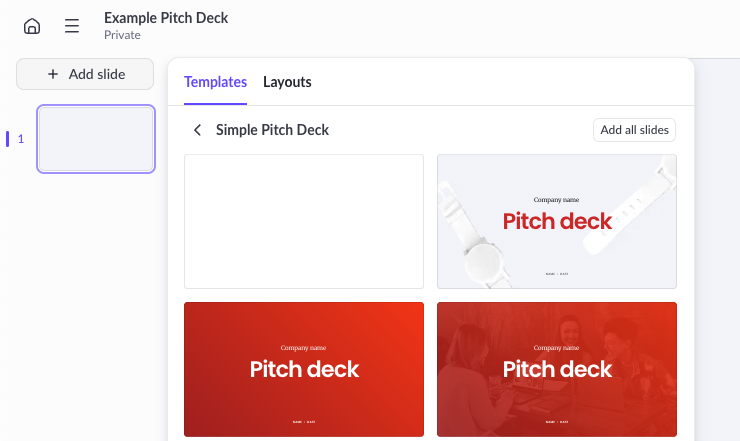
- Add new slides: Click + New Slide in the left panel to insert a template or blank slide.
- Keep branding consistency: We’ve set up consistent fonts, colors, and layouts—stick to these to maintain a professional look
Need more help? See Create and Edit Presentations | Pitch | Help Center
2. Sharing & Exporting
How to Share Your Pitch Deck
- Share a live link: Click Share → Share externally → Copy link to send a view-only version.
- Collaborate: Invite team members directly to edit/comment.
- Click Share → Invite to collaborate → Add their emails and assign permissions
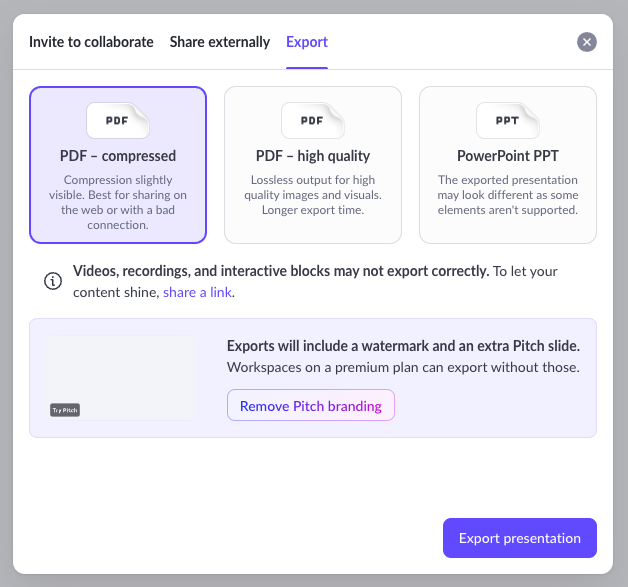
- Export: Click Share → Export → Select the preferred filetype
- PDF (great for investors who prefer email attachments)
- PowerPoint (not recommended since some elements aren’t supported and may look different)
When/Why to Use Each Option
- Share a live Link: Best for ongoing conversations with investors (so they always see the latest version).
- Export PDF: Best for one-off sends where you don’t expect them to revisit.
- Export PPTX: Rarely needed, but useful if an investor insists on PowerPoint.
Need more help? See Share an external link to your presentation | Pitch | Help Center
3. Using Analytics
Pitch includes built-in analytics so you can understand how your deck is being viewed.
How to Access Analytics
- Open your deck in Pitch.
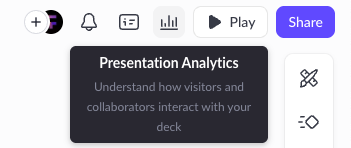
- Click the Presentation Analytics icon from the top-right menu.
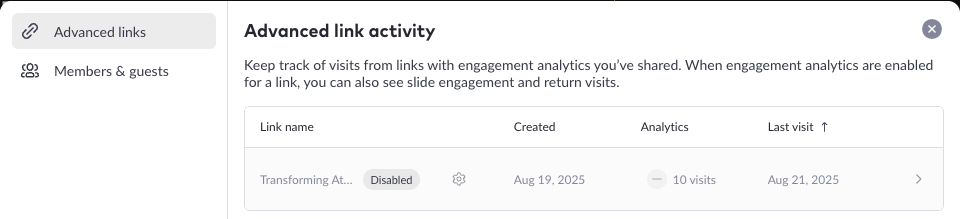
- Click the link you want to see analytics from the list.
What to Review Regularly
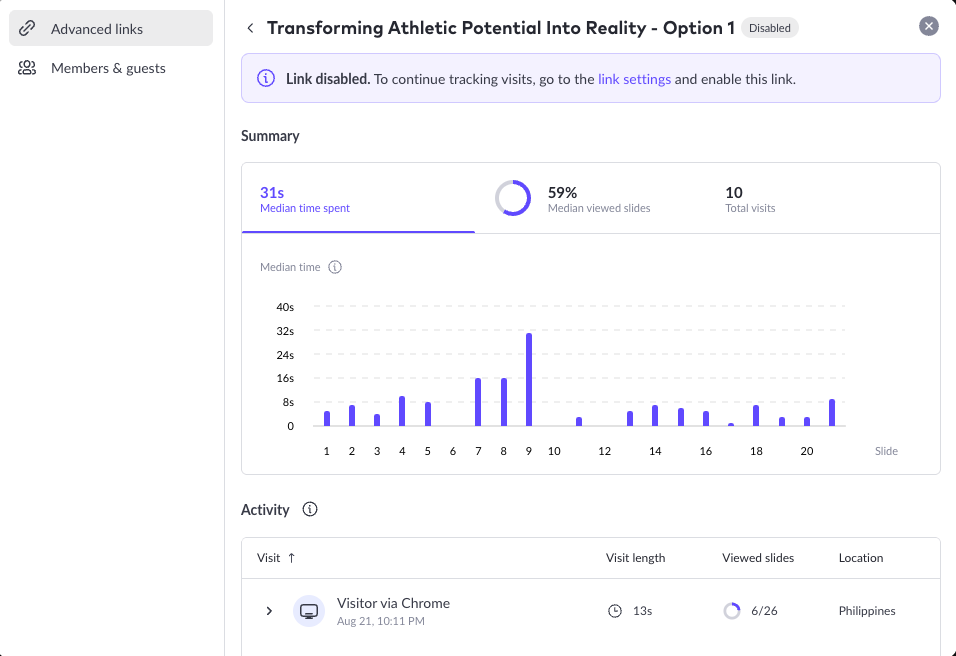
- Total views – Track how many investors are engaging with your deck.
- Top slides by time spent – Identify which parts capture attention (or where interest drops off).
- Viewer activity – See who viewed, when, and how often.

Recommended Process
- After sending the deck, check analytics within 24–48 hours.
- After sending the deck, check analytics within 24–48 hours.
- If key slides are being skipped, consider revising them for clarity or impact.
- Keep a simple log (e.g., in Google Sheets) of investor names, dates shared, and main analytics takeaways.
Need more help? See View presentation analytics | Pitch | Help Center
4. Best Practices for Using Your Deck
Pitch includes built-in analytics so you can understand how your deck is being viewed.
- Tailor the story to the audience: Slightly adjust the narrative depending on whether you’re speaking to VCs, angels, or partners.
- Duplicate, don’t overwrite: Create a copy for each major use case or audience. Keep a single “Master Deck” folder, and for each investor or round, duplicate the deck into a labeled version (e.g., “Series A – InvestorName – Jan 2025”). This way, your “master version” stays clean and up to date.
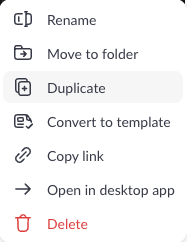
- Standardize file naming, e.g., “Series A – Master – Jan 2025” vs. “Series A – Investor Name – Version 1”
- Keep it updated: Refresh key numbers (financials, traction) before each use.
- Practice delivery: A polished deck is powerful, but how you tell the story matters just as much.
5. Advanced Editing & Collaboration
Pitch makes team collaboration simple and efficient.
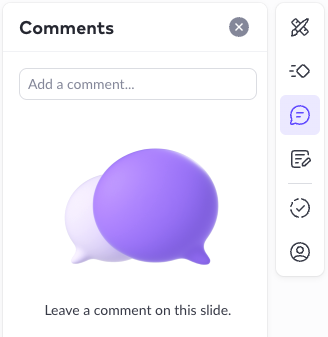
- Comment & Suggestions: Invite teammates or advisors to leave comments directly on slide and keep feedback centralized instead of juggling emails.
- Version history: Easily roll back to earlier versions if edits don’t work out. Pitch allows you to manage version history per slide and also retrieve deleted slides.
Need more help? See Collaborate With Others | Pitch | Help Center
6. Presentation Mode
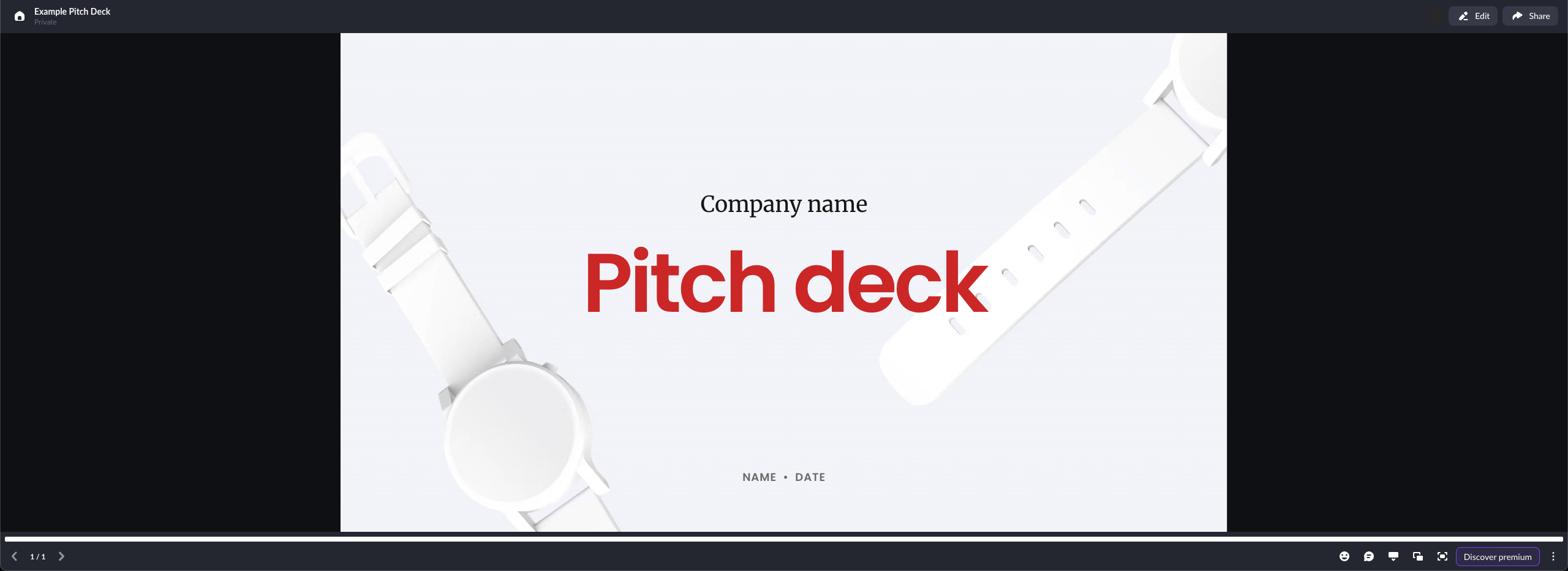
You can run your deck directly in Pitch without exporting. There are some amazing animation features within the platform but we recommend avoiding adding overly complex transitions/animations—clarity and smooth delivery are more impactful.
- Present live: Use Pitch in full-screen mode for both in-person and virtual meetings.
- Use speaker notes: Add private notes that only you see while presenting.
Need more help? See Present using speaker view | Pitch | Help Center
7. Organization & Access
Stay organized as your fundraising materials evolve.
- Workspace: Use a single workspace for all aspects of this fundraising project and round.
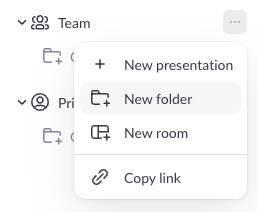
- Folders: Create one folder for your Master Deck (always up to date) and additional folders for variations.
- To create a new folder, go back to: Workspace Home Screen → Click the 3 dots next to Team → New Folder
- Example: “Series A – Master Deck” + “Series A – Investor Variations.”
- Permissions: We recommend limiting investor links to “view-only.” Keep editing access exclusively to your internal team.
Need more help? See Manage Your Workspace | Pitch | Help Center
8. Pitch Mobile App
Stay connected to your deck wherever you are with the Pitch mobile app (iOS & Android).
- Review on the go: Open and review your deck from your phone or tablet.
- Comment & collaborate: Leave feedback and reply to comments instantly.
- Quick sharing: Share your deck link with investors directly from your device.
- Stay updated: Get notifications when teammates edit or comment on your deck.
Download the app and learn more here: Pitch Mobile App Guide
We’d Love Your Feedback!
At Funding Forge, we’re always refining our process. Please share your feedback on:
- What worked well during this project?
- What could we have improved?
- Any additional support you’d like after handoff.
Your insights help us serve you and future founders better.
Need Help?
If you’d like continued support, we offer:
- Deck updates & refinements (for new rounds, pivots, or updated traction)
- Additional slides or supporting docs (financial models, one-pagers, etc.)
- Extended design support (graphics, branding, or additional investor materials)
Reach out to us if you’d like to schedule a quick call to discuss updates, refinements, or additional materials.

